Courses
Courses hold the graphs, links and super users for a single subject. This page covers what course staff (course admins and editors) can do. Programme-level management is covered on the Programmes page.
Viewing a course
Section titled “Viewing a course”All courses you have access to are listed on the
Courses page, grouped into “My Pinned Courses”, “All Courses” and “Archived Courses”. Use the search bar to find a course by code or name. Click the pin icon on a course to add or remove it from your pinned list.
Click “View” (or “View/Edit” if you have edit permissions) on a course card to open its overview page, which lists the course’s graphs.
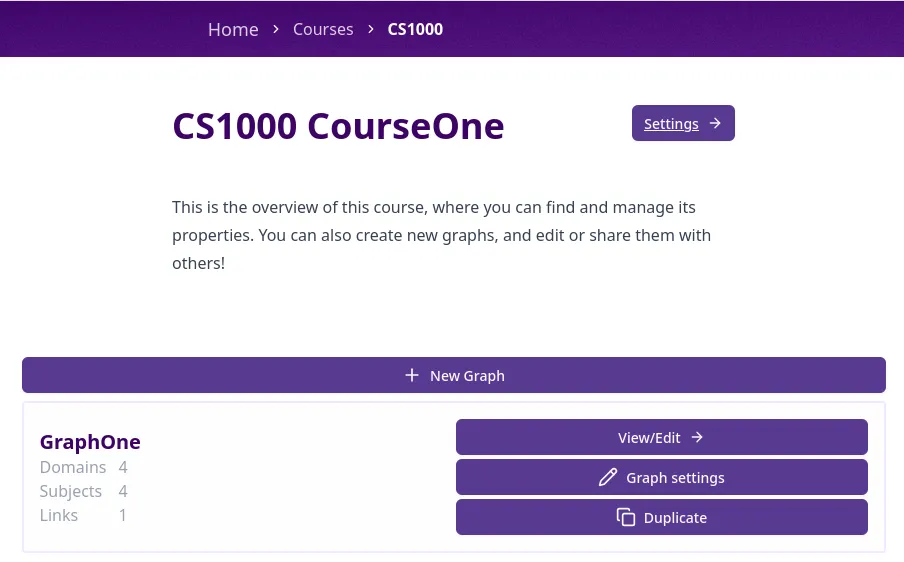 Figure 1: Course overview
Course settings
Section titled “Course settings”Click “Settings” on a course card, or “Settings →” on the course overview page, to open course settings.
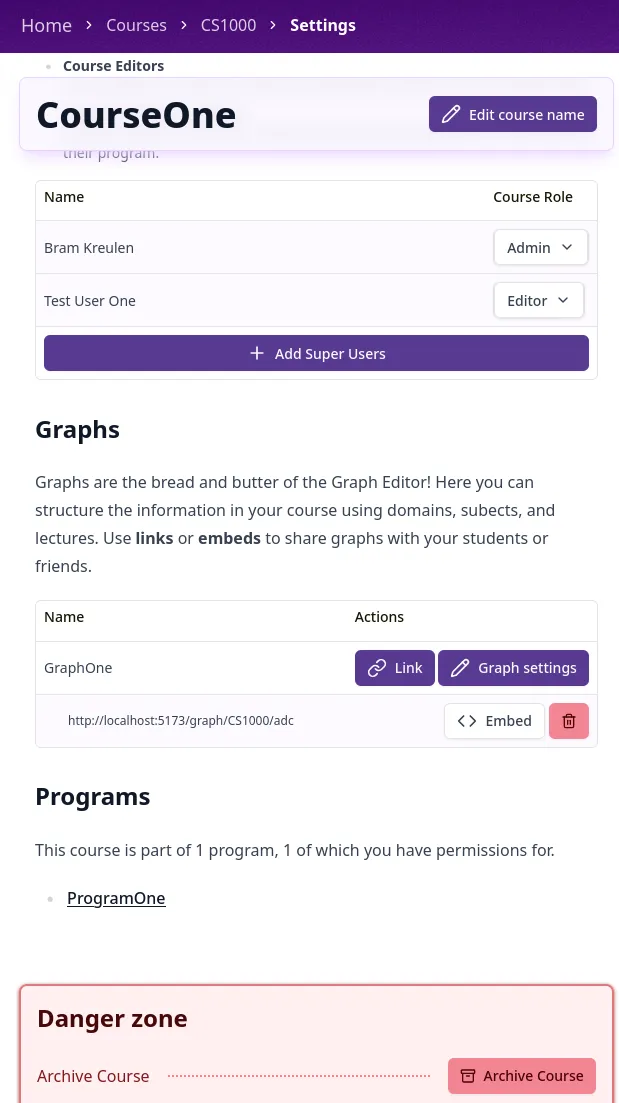 Figure 2: Course settings
From here you can rename the course, manage super users, see the course’s graphs, and (if the course is archived) delete it.
Course roles
Section titled “Course roles”- Course Admins can manage course settings, permanently delete graphs and links, and archive the course.
- Course Editors can create and edit graphs and links, but not delete them.
- Programme Admins & Editors implicitly have admin permissions for every course in their programme.
See the Roles page for the full permission hierarchy and what each role can do.
Add or change super users
Section titled “Add or change super users”Only course admins and programme admins/editors can add super users or change roles. Course editors cannot.
- Click “Add Super Users”
- Search for a user by name.
- Check “User is allowed admin permissions” to add them as an admin, or leave it unchecked to add them as an editor.
- Click “Add super user” to add the user.
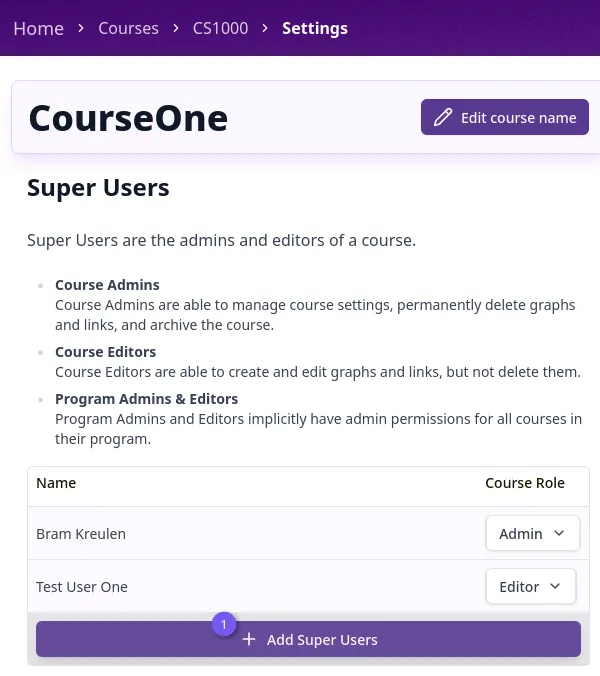 Figure 3a: Add super user
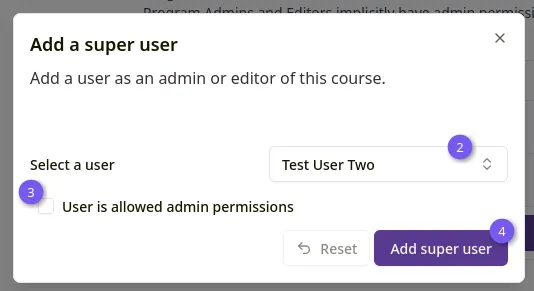 Figure 3b: Add super user
To change an existing super user’s role, click their “Admin” or “Editor” badge in the table and choose a new role from the menu. The same menu lets you remove their access entirely (requires a confirmation click).
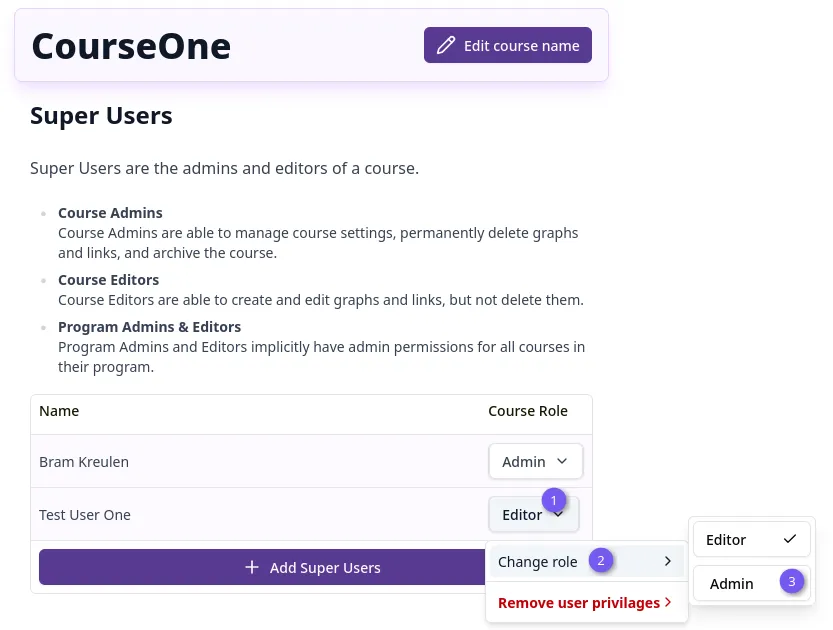 Figure 4: Super users table
Archiving and deleting a course
Section titled “Archiving and deleting a course”Course admins can archive or restore a course from the settings page’s danger zone. This hides it from the default course list without deleting anything.
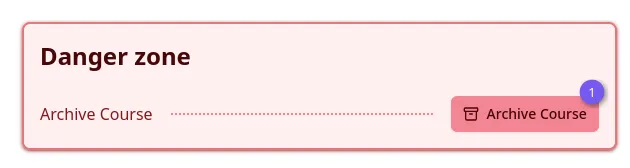 Figure 5: Archive course
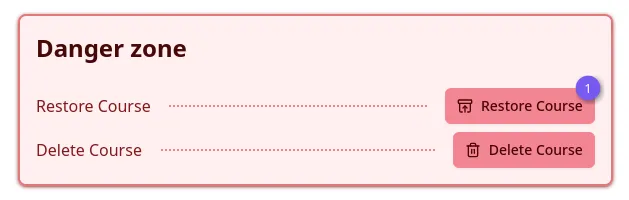 Figure 6: Restore course
Deleting a course
Section titled “Deleting a course”Once a course is archived, a “Delete Course” option appears for users with programme admin/editor permissions. Deleting a course is permanent: it removes the course, its graphs and its links, and breaks any embeds for that course.
- Archive the course first.
- Click “Delete Course” in the danger zone.
- Type the course name to confirm.
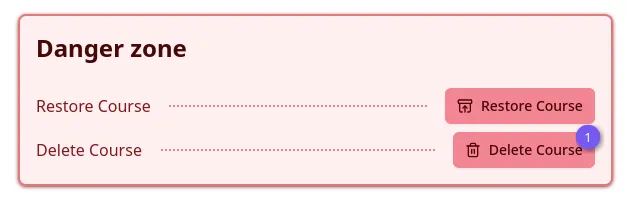 Figure 7a: Delete course
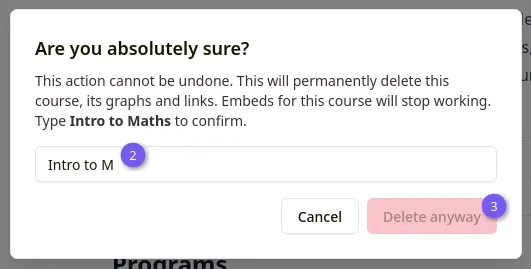 Figure 7b: Delete course