Sandboxes
A sandbox is a private space for graphs that don’t belong to a course. Use it to experiment, prototype a graph before proposing it for a course, or build something for a one-off assignment.
How sandboxes differ from courses
Section titled “How sandboxes differ from courses”- No programme hierarchy: a sandbox belongs to one person (its Owner), not a programme.
- Simpler roles: Owner and Editor, instead of a course’s Admin/Editor split. See Sandbox roles below.
- A sandbox can be deleted by its owner at any time, with no archive step.
- Creating graphs, editing domains/subjects/lectures, and everything else about working inside a graph works exactly the same as in a course. See the Graphs, Domains, Subjects, and Lectures pages for how-tos on that.
Creating a sandbox
Section titled “Creating a sandbox”All sandboxes you have access to are listed on the
Sandboxes page. Click “Create Sandbox”, give it a name, and you’re the owner of a new, empty sandbox.
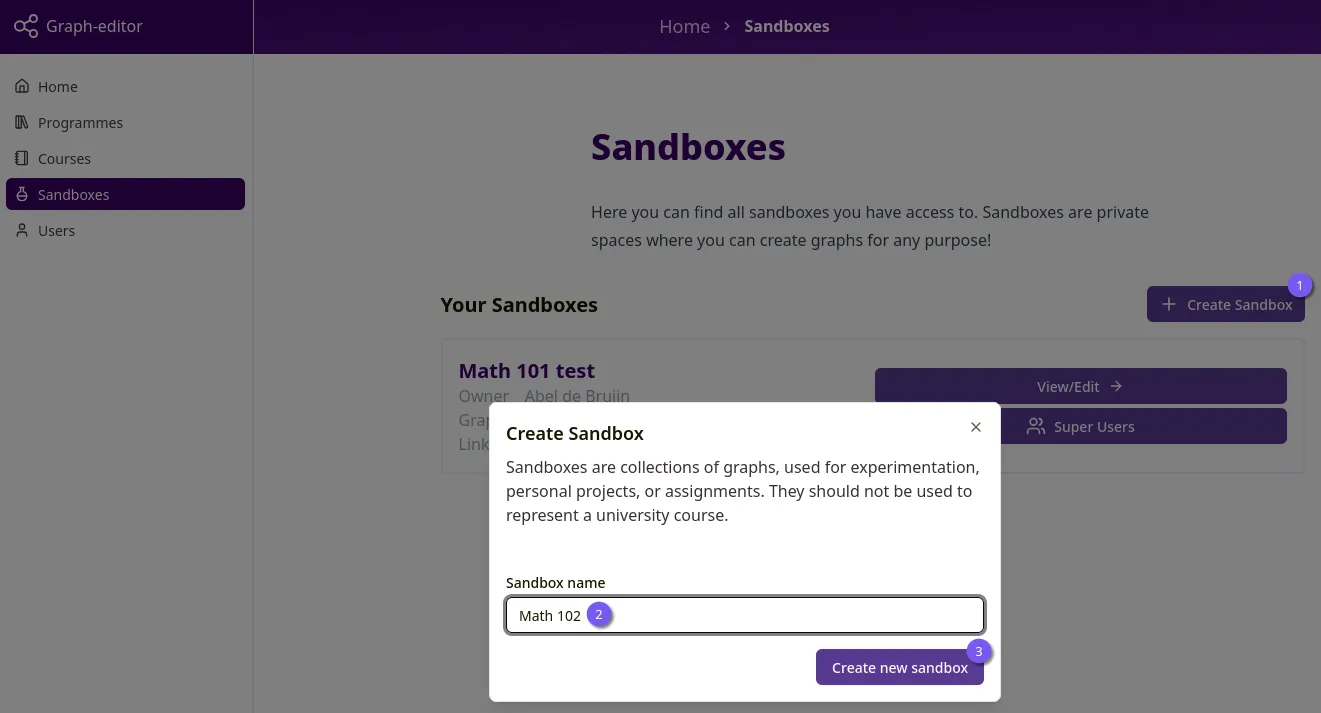 Figure 1: Create sandbox
Viewing a sandbox
Section titled “Viewing a sandbox”Opening a sandbox card works the same as opening a course card on the Courses page: click “View” (or “View/Edit” if you’re the owner or an editor) to reach its overview page, listing the sandbox’s graphs. A sandbox has no pinned/archived grouping and no “request access” fallback, since only the owner and editors can see it at all.
Sandbox roles
Section titled “Sandbox roles”- Owner can rename the sandbox, add or remove editors, transfer ownership, and delete the sandbox. A sandbox has exactly one owner.
- Editor can create and edit graphs in the sandbox, but cannot change its settings, add other editors, or delete it.
Both owner and editors are shown as “Super Users” on a sandbox’s card in the sandbox list.
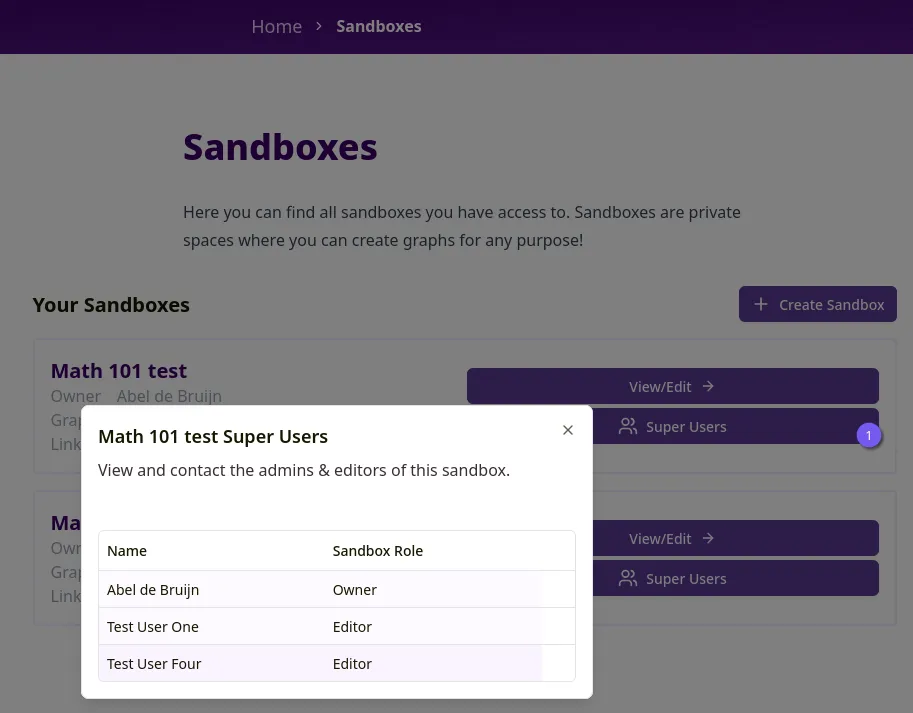 Figure 2: Sandbox super users
Sandbox settings
Section titled “Sandbox settings”Only the owner can open a sandbox’s settings page, reached via “Settings” on the sandbox overview page.
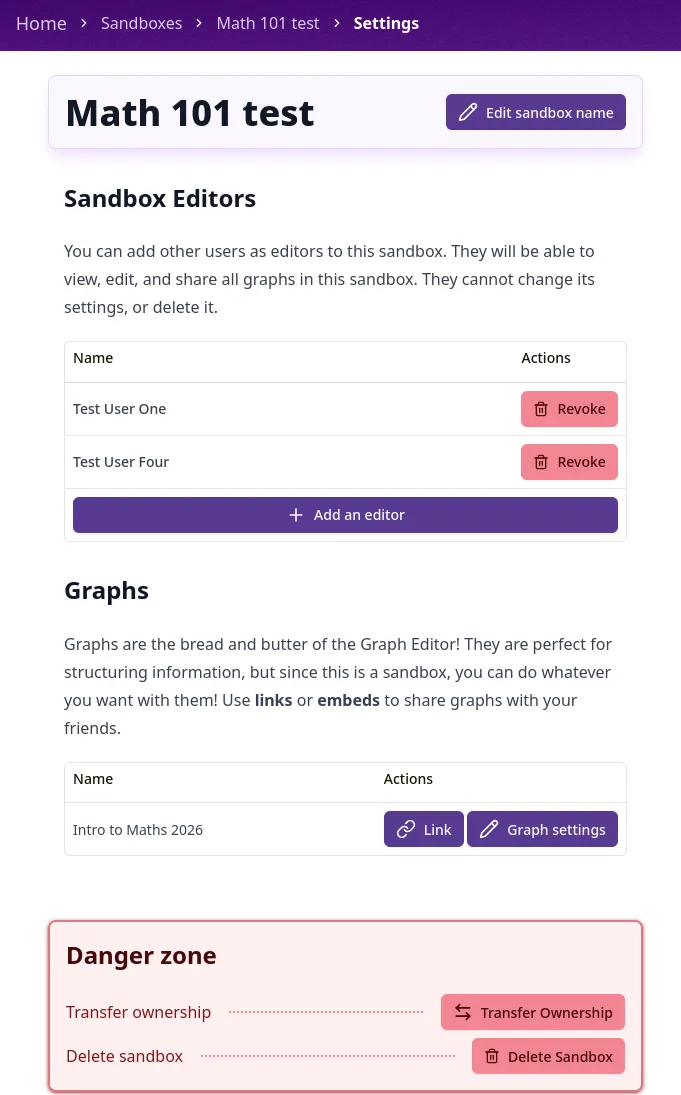 Figure 3: Sandbox settings
Renaming a sandbox
Section titled “Renaming a sandbox”Click “Edit sandbox name” at the top of the settings page.
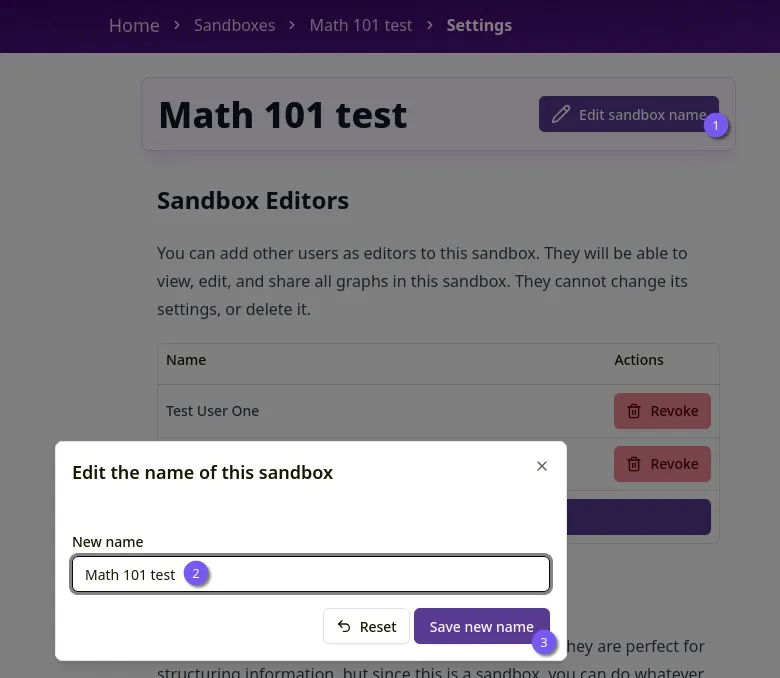 Figure 4: Rename sandbox
Managing editors
Section titled “Managing editors”Adding and removing editors uses the same “Add super users” dialog and table pattern as Courses. The differences: a sandbox has only one role (editor, no admin), so there’s no role picker, and removing an editor is a “Revoke” button in their table row instead of a role-badge menu.
Transferring ownership
Section titled “Transferring ownership”In the danger zone at the bottom of the settings page, the owner can transfer ownership to another editor. The current owner becomes an editor and immediately loses access to the settings page. This cannot be undone by the person transferring ownership.
Deleting a sandbox
Section titled “Deleting a sandbox”Also in the danger zone, the owner can permanently delete the sandbox, along with all its graphs and links. Deleting requires typing the sandbox’s name to confirm, and cannot be undone.
Leaving a sandbox
Section titled “Leaving a sandbox”An editor (not the owner) can leave a sandbox from its overview page. This removes their editor access; the owner or another editor needs to add them back for them to regain access.