Subjects
A subject is a topic or concept within a domain. Subjects sit one level below domains, and are what gets assigned to lectures.
Creating a subject
Section titled “Creating a subject”Open a graph’s Subjects tab and click “New Subject”. Give it a name and, optionally, link it to a domain right away.
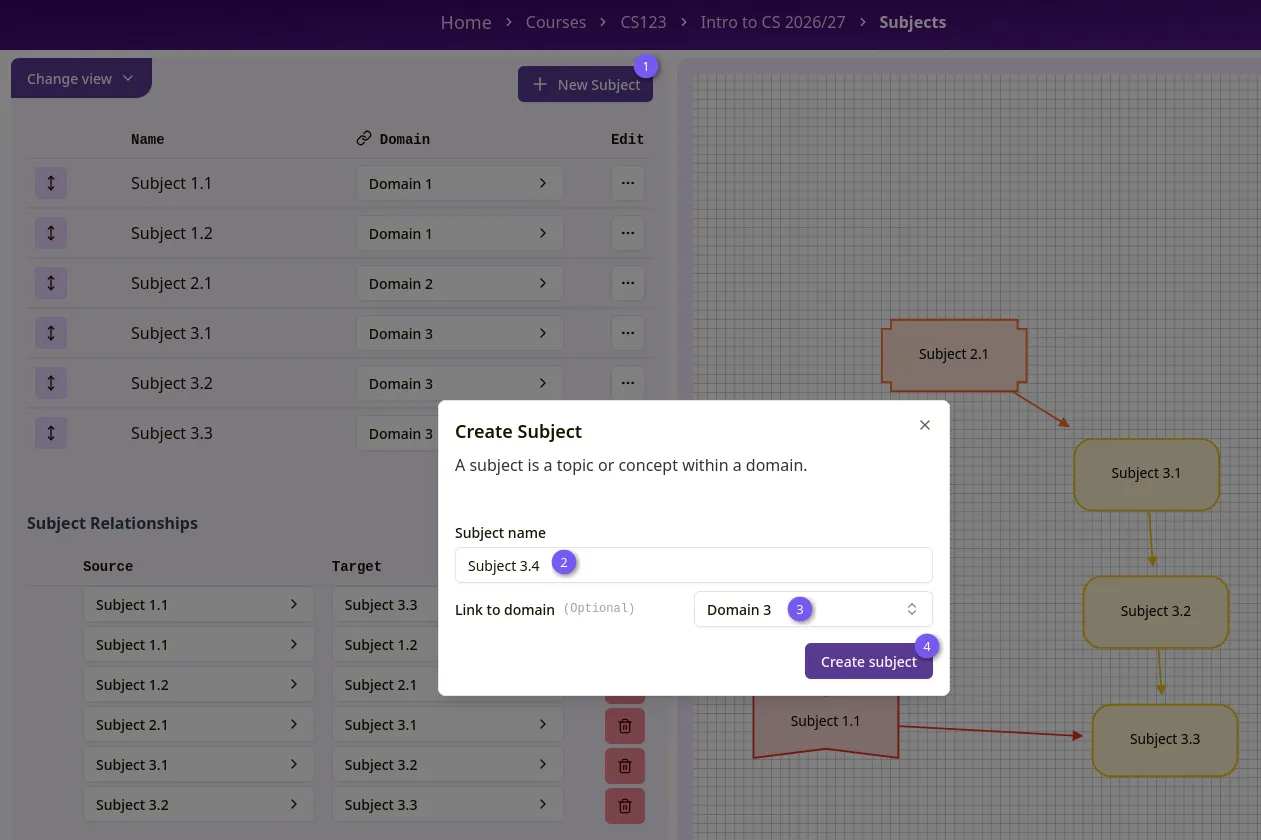 Figure 1: Create subject
Subjects appear in a table showing their name, linked domain, and any validation issues (1).
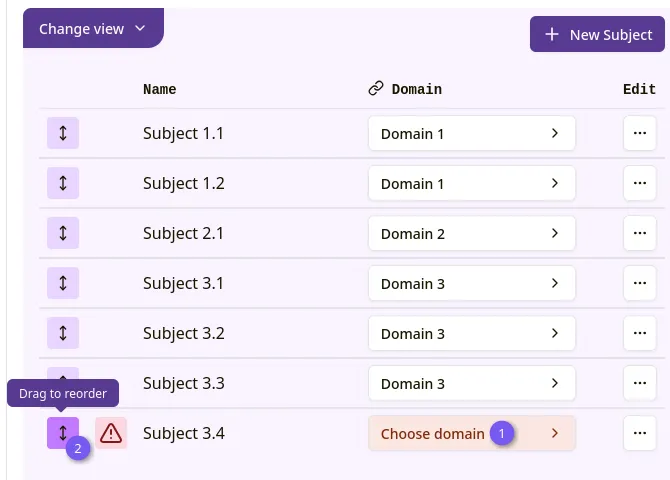 Figure 2: Subject table
You can drag rows (2) to reorder subjects.
Assigning a subject to a domain
Section titled “Assigning a subject to a domain”Click the Domain column for a subject to open a dropdown listing every domain in the graph. Selecting one immediately re-assigns the subject, there’s no separate save step. Choose “None” to unlink it from any domain.
A subject that has no domain assigned shows an orange “Choose domain” prompt in this column until you set one.
Editing or deleting a subject
Section titled “Editing or deleting a subject”Click the ellipsis menu on a subject’s row and choose “Edit” to rename it, change its linked domain, or delete it.
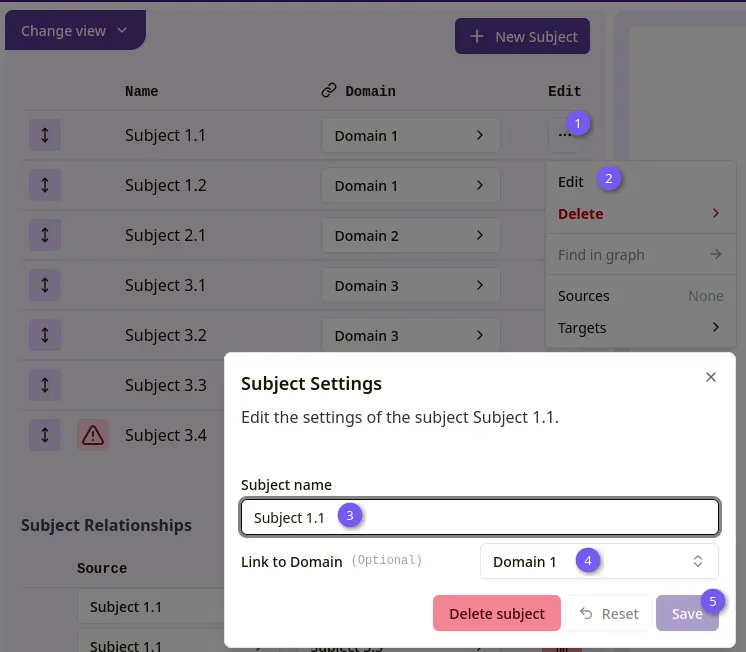 Figure 3: Edit subject
Deleting a subject also removes any subject relationships it’s part of. The confirmation dialog tells you how many will be affected before you confirm.
Subject relationships
Section titled “Subject relationships”Once a graph has at least one subject, a subject relationships section appears below the subject table, working the same way as domain relationships: click “New Relationship”, pick a source and target subject, and manage the resulting connections in the table below.
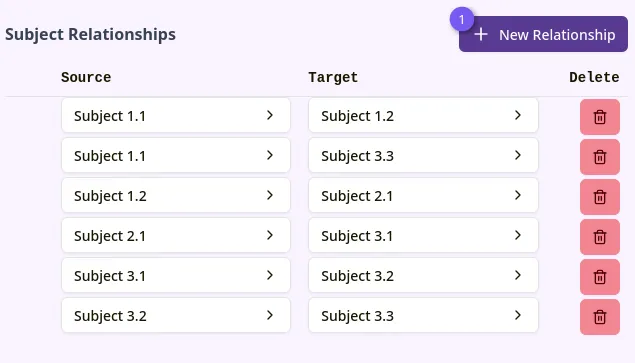 Figure 4: Subject relationships