Programmes
Programmes are collections of courses, usually pertaining to the same faculty. Looking to try out the Graph editor? Try making a sandbox environment instead!
Creating a new programme
Section titled “Creating a new programme”If you are a super admin, you can create a new programme by clicking the “Add Programme” button on the Programs page.
When creating a new programme, you will need to provide the following information:
- Programme name
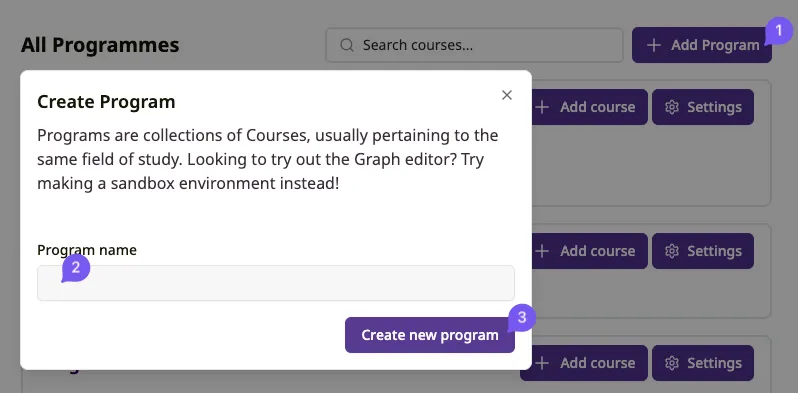 Figure 1: Create Programme
Editing a programme
Section titled “Editing a programme”If you are a program admin or editor, you can edit a programme by navigating to the Programs page and click the “Settings” button next to the programme you want to edit.
 Figure 2: edit Programme hello this is a test hello this is a test
Add admins or editors
Section titled “Add admins or editors”Once you are on the programme settings page, you can add or remove admins and editors by clicking the “Add Super Users” button.
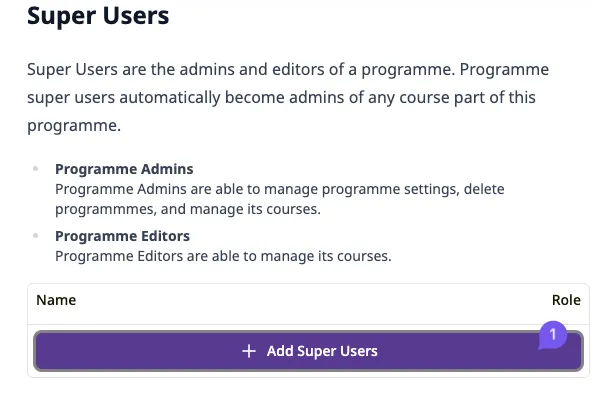 Figure 3: Add super users
Select one of the users from the searchbar. Choose if the user is allowed admin permissions.
Programme Admins: Programme Admins are able to manage programme settings and manage its courses.
Programme Editors: Programme Editors are able to manage its courses.
See the Roles page for the full permission hierarchy, including which role can delete a programme.
Change role of an admin or editor
Section titled “Change role of an admin or editor”To change the role of an admin or editor, click on the button “admin” or “editor” in the Role column.
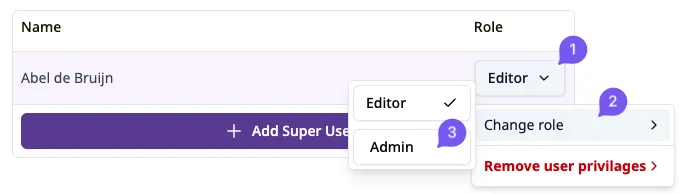 Figure 4: Change role
With the same button, you can also remove the user from the programme.
Add or (un)link a course to a programme
Section titled “Add or (un)link a course to a programme”To add or link a course to a programme, navigate to the Courses section in the programme settings page.
- Click on the “Add course” button.
- Choose a course code (e.g. WBMT1050) corresponding to the course you want to add or link.
- Choose a course name (e.g. “Introduction to Calculus”) that accurately reflects the course content.
- Click create new course
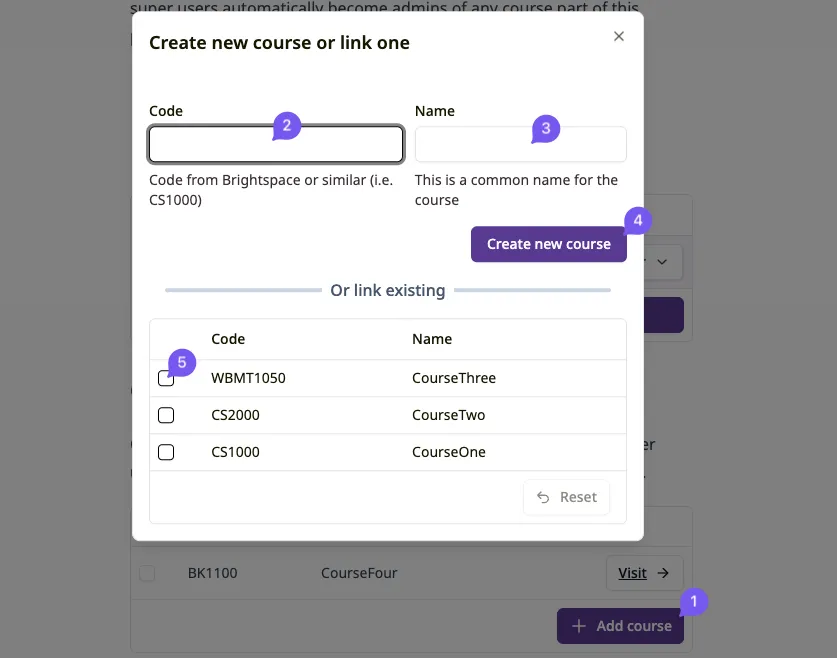 Figure 5: Add or link course
Alternatively, you can link one or more existing courses by clicking on one of the courses in the table below.
To unlink a course from a programme, select it from the table and click the “Unlink courses” button.
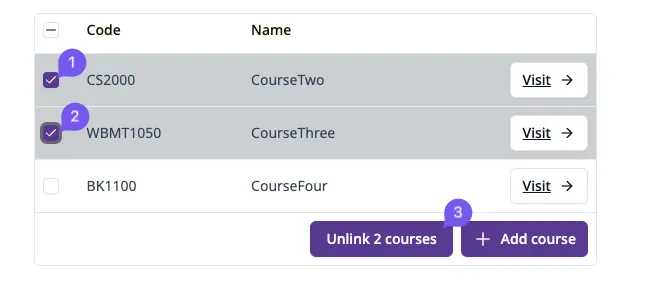 Figure 6: Unlink course